
Reduce image size instantly! In today's fast-paced digital world, large image files are the silent killers of user experience. Whether you are running an e-commerce website, sending a digital portfolio, or uploading photos to a slow portal, learning how to compress images without destroying their visual clarity is a mandatory skill.
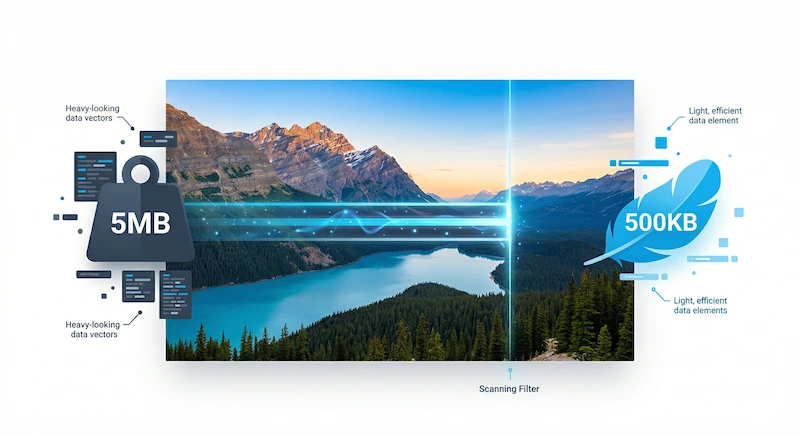
Many people believe that "compression" automatically equals "blurry." This is a myth. By utilizing modern, smart compression algorithms, you can often shrink a 5MB photograph down to 500KB—a 90% reduction—without the human eye noticing a single difference.
Lossy vs. Lossless Compression
To understand how to keep your images looking sharp, you first need to understand the two main types of data compression used in digital media:
| Compression Type | How It Works | Best Used For | File Size Reduction |
|---|---|---|---|
| Lossless | Reorganizes data perfectly. Every single original pixel is mathematically retained. (e.g., PNG, ZIP) | Logos, typography, technical diagrams with sharp edges. | Minimal (5% - 20%) |
| Lossy | Permanently discards "invisible" color data that the human eye cannot perceive. (e.g., JPEG, WebP) | High-resolution photographs, complex gradients, web banners. | Massive (60% - 90%) |
If your goal is to shrink file sizes dramatically for web usage, Smart Lossy Compression is the industry standard. The trick is hitting the "Golden Ratio" (usually around 80%-85% quality) where the file size plummets, but compression artifacts (blocky pixels) haven't yet formed.
The Secret: Metadata Stripping & Quantization
How does a smart compressor actually work? It isn't just blurring the image. Advanced tools use two primary techniques:
- Color Quantization: An image might contain 100 different shades of blue in the sky. A smart compressor groups these nearly identical colors into just 10 shades. Your eye still sees a beautiful blue sky, but the computer has 90% less data to store.
- Metadata Stripping: When you take a photo with a smartphone, it saves hidden text data (EXIF data) inside the file, including your GPS location, camera model, and focal length. Stripping this invisible data can instantly save 10-15% of your file size without touching a single pixel.
If you want the ultimate compression, stop using JPEG and PNG. Convert your images to WebP. Developed by Google, WebP provides superior lossy compression that creates files up to 34% smaller than equivalent JPEGs while retaining the exact same visual quality.
Ready to Shrink Your Photos Safely?
Use our free online image compressor. It runs locally in your browser, utilizing smart quantization algorithms to reduce your file size by up to 90% while guaranteeing absolute privacy.
Open Smart CompressorHow to Guarantee High Quality During Compression
If you are compressing images manually, follow these golden rules to avoid ruining your photos:
- Resize Dimensions First: Never compress a 4000px wide image if it will only be displayed at 800px wide on a blog. Resize the physical dimensions first, and the file size will drop naturally.
- Don't Re-Compress JPEGs: JPEG is a lossy format. Every time you save and compress a JPEG, it loses data. Always try to compress from the original high-quality source file.
- Trust Your Eyes: Rely on tools that use SSIM (Structural Similarity Index) to judge quality, but always do a final visual check.